Can A Digital Piano Be Used As A Midi Controller | FLYKEYS Guide
Discover if your digital piano can function as a MIDI controller. This article explains how to connect and configure your instrument for MIDI control, highlighting limitations compared to dedicated MIDI keyboards. Learn about necessary connections, software/hardware setup, and channel selection for optimal performance with FLYKEYS.
Yes — most modern digital pianos transmit MIDI data and work with DAWs, apps, and external hardware. Three things to confirm before you start:
A digital piano is not the same thing as a dedicated MIDI controller keyboard — but for most pianists, composers, and home studio users, it does the job well. This guide covers exactly how to connect and configure a digital piano as a MIDI controller, what the limitations are, and when a dedicated controller is the better choice.
What MIDI Actually Does When You Play
MIDI (Musical Instrument Digital Interface) is a communication protocol — it sends performance data, not audio. When you use a digital piano as a MIDI controller, the piano's keys transmit note information (which key, how hard, how long) to another device or software. The receiving end generates the actual sound.
This means when playing through a DAW or external synthesizer:
- The digital piano's internal sounds are bypassed (unless Local Control is on)
- The piano sends MIDI data to the computer or hardware over USB or MIDI cable
- The DAW or virtual instrument generates and plays back the sound
In 2026, most digital pianos support MIDI via USB-to-Host (the most common connection) and increasingly via Bluetooth MIDI. A small number of professional models retain the traditional 5-pin DIN MIDI OUT port for connecting to hardware synthesizers and older gear.
How to Connect a Digital Piano as a MIDI Controller
Option 1: USB-MIDI (most common)
The simplest and most common connection in 2026. Most digital pianos have a USB-to-Host port on the rear panel — this is the port that connects to a computer, not the USB-to-Device port used for USB storage.
- Connect the piano's USB-to-Host port to your computer with a USB-A to USB-B cable (or USB-C depending on your computer)
- Open your DAW (Ableton Live, Logic Pro, GarageBand, FL Studio, Cubase, etc.) — most recognize USB-MIDI devices automatically, no driver required
- In the DAW's MIDI input settings, select the piano as the MIDI input source
- Set the MIDI channel in the DAW's MIDI track to receive from the piano's transmit channel. Most pianos default to Channel 1; many DAWs default to receiving on "All Channels," which accepts any channel. If you set a specific channel in the DAW and it does not match the piano's transmit channel, no notes will pass through — check both settings if notes are not appearing
- Turn off Local Control on the piano if you want only the DAW sound (see below)
- Play a key and confirm MIDI activity appears in the DAW
Option 2: Bluetooth MIDI
Available on an increasing number of digital pianos, including several FLYKEYS models. Bluetooth MIDI sends MIDI data wirelessly to a computer, tablet, or phone. Useful for tablet-based apps and practice setups where cables are inconvenient.
- Enable Bluetooth MIDI on the piano (usually in the System or MIDI settings menu)
- On the receiving device, open a Bluetooth MIDI-compatible app or DAW and scan for devices
- Pair the piano — it typically appears as the piano's model name
- Confirm MIDI signal in the app and set channel if required
Latency note: Bluetooth MIDI latency varies significantly depending on the Bluetooth stack, operating system, driver implementation, and distance from the device. On iOS (iPhone/iPad) Bluetooth MIDI is generally well-optimized and low-latency. On Windows, Bluetooth MIDI latency is more variable and can be unsuitable for real-time playing depending on the driver. For reliable, low-latency MIDI input across all platforms, USB-MIDI remains the more consistent choice. Test Bluetooth MIDI in your specific environment before depending on it for performance use.
Option 3: 5-pin DIN MIDI OUT
Found on professional and stage digital pianos. Connects to hardware synthesizers, sound modules, and older equipment via a MIDI cable. Requires a MIDI interface (or audio interface with MIDI I/O) if connecting to a computer that lacks a 5-pin input. Reliable for hardware-to-hardware setups. Traditional 5-pin MIDI does introduce a small amount of serialization delay (approximately 1ms per MIDI byte at the standard 31,250 baud rate), though this is imperceptible in normal playing and is not a practical concern for most uses.
Local Control: The Setting Most People Get Wrong
Local Control determines whether the piano's internal sound engine responds to its own keyboard. It is not a universal "on for standalone, off for MIDI" rule — the correct setting depends on how your audio routing is configured in the DAW.
The piano's internal sound engine responds directly to keystrokes AND sends MIDI out simultaneously.
Problem: if your DAW has MIDI echo or "MIDI Thru" enabled, the piano receives its own MIDI signal back and triggers twice — a common cause of double notes and unexpected behavior.
The piano's internal engine is disconnected from the keyboard — keystrokes send MIDI out only, and no internal sound is produced directly.
Use when: your DAW routes MIDI back to the piano's sound engine via USB, so the piano still produces sound — but through the DAW routing rather than directly. Prevents doubling without silencing the piano.
Local Control location varies by manufacturer: typically in System Settings, Function menu, or a dedicated MIDI menu. Consult your model's manual for the exact path.
Digital Piano vs MIDI Controller: What Is the Practical Difference?
A digital piano and a dedicated MIDI controller keyboard are different products designed for different primary uses — and this matters when deciding which to use as your main MIDI input device.
| Digital piano as MIDI controller | Dedicated MIDI controller keyboard | |
|---|---|---|
| Key action | Weighted hammer action — closer to acoustic piano feel | Usually semi-weighted or synth action (lighter, faster) |
| Own sound engine | Yes — can play standalone without a computer | Usually no — requires a computer or external sound source |
| Pitch bend / mod wheel | Rarely included — limits real-time synth control | Standard feature on most models |
| Assignable knobs/faders | Rarely available | Common — useful for mixing and sound design |
| Piano playing experience | Excellent — designed for pianists | Variable — depends heavily on model |
| Best for | Pianists, composers, educators triggering virtual pianos and instruments | Producers needing real-time control, synth modulation, performance mapping |
When a Digital Piano Works Well as a MIDI Controller
When a Dedicated MIDI Controller Is the Better Choice
- You need pitch bend and modulation wheels for synth performance. Most digital pianos do not include these, and they cannot easily be added. If your workflow involves frequent pitch bends, vibrato, or real-time filter sweeps, a dedicated controller is the more practical tool.
- You need assignable knobs, faders, or pads. Mixing, sound design, and performance mapping with MIDI CC assignments is what dedicated controllers are designed for. A digital piano offers very limited real-time control beyond note and velocity data.
- You primarily produce electronic music rather than play piano parts. If the piano keyboard is mainly a way to input notes and chords rather than a primary instrument, a controller keyboard is more cost-effective and gives you more features per dollar.
- Portability is a priority. Dedicated MIDI controllers are typically lighter, more compact, and more road-ready than a full digital piano. For producers who move between studios, a controller is the more practical choice.
Platform Setup: Mac, PC, iPad, Android
The connection process differs by platform. These are simplified setup paths — consult your DAW's documentation for model-specific details.
- Connect piano via USB-to-Host cable
- Mac recognizes USB-MIDI devices natively — no driver needed in most cases
- Verify the piano appears in Audio MIDI Setup (Applications → Utilities → Audio MIDI Setup → MIDI Studio view)
- In your DAW (Logic Pro, GarageBand, Ableton), the piano should appear automatically as a MIDI input — select it on the MIDI track
- GarageBand: New Track → Software Instrument → piano appears in Smart Controls as input source
- Connect piano via USB-to-Host cable
- Windows 10/11 includes a class-compliant USB-MIDI driver — most pianos are recognized without additional software. If not recognized, check the manufacturer's website for a Windows MIDI driver
- Verify in Device Manager under "Sound, video and game controllers" or "Universal Serial Bus controllers" — the piano should appear without a warning icon
- In your DAW (Ableton, FL Studio, Cubase, Reaper), go to MIDI settings and confirm the piano is listed and enabled as a MIDI input
- If using Ableton Live: Preferences → Link, Tempo & MIDI → enable "Track" for the piano input
- USB-MIDI: connect the piano to iPad/iPhone using a USB-to-Host cable + Apple Lightning to USB3 Camera Adapter (for Lightning iPads) or a USB-C to USB-A adapter (for USB-C iPads/iPhones). A powered adapter is recommended for USB-MIDI to ensure sufficient bus power
- Bluetooth MIDI: enable Bluetooth MIDI on the piano, then in the app open its Bluetooth MIDI settings. In GarageBand: Settings → Advanced → Bluetooth MIDI Devices; in most apps, Bluetooth MIDI connection is in the app's Settings or Instruments menu
- iOS handles Bluetooth MIDI reliably and with low latency compared to other platforms — suitable for practice and recording use
- Compatible apps: GarageBand, Cubasis, AUM, Moog apps, Simply Piano, Playground Sessions, and most Core MIDI-compatible iOS apps
- Bluetooth MIDI: Android supports Bluetooth MIDI from Android 6.0 (Marshmallow). In compatible apps, look for a Bluetooth MIDI connect option within the app — Android does not have a system-level Bluetooth MIDI connection panel like iOS. The app must handle the pairing. Latency varies considerably by device and Android version
- USB-MIDI: Android supports USB host mode and class-compliant USB-MIDI on most devices from Android 5.0+. Connect via OTG (On-The-Go) USB adapter. Not all Android devices support USB host mode — verify your device spec before purchasing adapters
- Compatible apps: FL Studio Mobile, Caustic, Roland piano apps, and apps that use Android's native MIDI API introduced in Android 6.0
Keys → MIDI data
/ 5-pin DIN
Receives note data
Generates audio
Note: when Local Control is OFF, the piano produces no sound directly — audio output depends entirely on the DAW and virtual instrument chain above.
Troubleshooting: No Sound, Not Recognized, or Notes Not Passing Through
FLYKEYS Digital Pianos and MIDI Connectivity
FLYKEYS digital pianos include USB MIDI and Bluetooth MIDI on current models, compatible with major DAWs and music apps on Mac, Windows, iOS, and Android. The FDP-7 and FP series support USB audio recording in addition to MIDI output, allowing simultaneous MIDI and audio capture in a single USB connection. Confirm the MIDI feature set for the specific model on the product page, as connectivity varies across the range.
Questions About MIDI Connectivity on a FLYKEYS Piano?
Contact the FLYKEYS team with your model and DAW — we can confirm USB-MIDI, Bluetooth MIDI, and USB audio specifications for your setup.
Contact FLYKEYS →FAQ
Q1: Can a digital piano be used as a MIDI controller?
Yes — most modern digital pianos transmit MIDI data and can be used as MIDI controllers with DAWs, apps, and external hardware. The connection method depends on the piano: USB-to-Host is the most common, available on most current models; Bluetooth MIDI is supported on an increasing number of instruments; and 5-pin DIN MIDI OUT is found on professional and stage models. The piano sends note and velocity data to the receiving device, which generates the audio — the piano's own sounds can be active or bypassed depending on the Local Control setting.
Q2: What is USB-to-Host and why does it matter?
USB-to-Host is the USB port on a digital piano that transmits MIDI data to a computer or tablet. It is different from the USB-to-Device port, which is used for USB storage (loading samples, saving recordings). Connecting the wrong port — USB-to-Device into a computer — is one of the most common reasons a piano is not recognized as a MIDI device. Always use the USB-to-Host port for MIDI controller use. Most modern operating systems (macOS, Windows 10/11, iOS) recognize USB-MIDI devices without requiring additional drivers.
Q3: What is Local Control and should it be on or off?
Local Control determines whether the piano's internal sound engine responds directly to its own keyboard. The correct setting depends on your routing. If your DAW routes MIDI back to the piano's sound engine (MIDI Thru active), turn Local Control OFF to prevent each note from sounding twice. If your DAW does not route MIDI back to the piano, Local Control ON or OFF both work — OFF is cleaner. If you want to hear the piano's own sounds alongside DAW sounds simultaneously, set Local Control ON and disable MIDI echo/MIDI Thru in the DAW. There is no single universal answer: the correct setting depends on your specific audio routing.
Q4: Why does every note sound twice when I play through my DAW?
This is a Local Control issue. The piano is producing internal sound directly from the keys, and the DAW is simultaneously routing MIDI back to the piano's sound engine, triggering a second instance of the same note. Fix by either: (a) turning Local Control OFF on the piano so it stops responding directly to keystrokes, or (b) disabling MIDI Thru or MIDI echo in the DAW. Which is more appropriate depends on whether you want the piano's own sounds to remain active.
Q5: Is Bluetooth MIDI reliable enough to use?
It depends on the platform. On iOS (iPhone/iPad), Bluetooth MIDI is well-implemented and generally low-latency — suitable for practice and recording. On Android, latency varies considerably by device and app, and some Android devices do not support Bluetooth MIDI at all. On Windows, Bluetooth MIDI reliability depends heavily on the driver and Windows version, and can be unsuitable for real-time playing on some configurations. For consistent, low-latency MIDI across all platforms, USB-MIDI is the more reliable choice; test Bluetooth MIDI in your specific environment before depending on it for performance use.
Q6: Why is there noticeable lag when playing through my DAW?
Perceptible latency when playing virtual instruments through a DAW is almost always caused by the audio buffer size setting in the DAW, not by the MIDI connection. MIDI transmission latency is typically in the sub-millisecond range and is not perceptible to players. In the DAW's audio settings, reduce the audio buffer size (try 128 or 64 samples). On Windows, use an ASIO driver rather than the standard Windows audio driver — ASIO significantly reduces audio latency. On Mac, Core Audio manages latency efficiently and ASIO is not required.
Q7: When is a dedicated MIDI controller better than a digital piano?
A dedicated MIDI controller keyboard is the more practical choice when: you need pitch bend and modulation wheels for synth performance (most digital pianos do not include these); you need assignable knobs, faders, or pad controllers for mixing or sound design; you primarily produce electronic music rather than play piano-style parts; or portability is a priority. A digital piano works better as a MIDI controller when: you want weighted hammer action for playing virtual piano instruments expressively; you want an instrument that also plays standalone without a computer; or you are a pianist who occasionally uses MIDI as a secondary workflow rather than the primary use.
- What MIDI Actually Does When You Play
- How to Connect a Digital Piano as a MIDI Controller
- Local Control: The Setting Most People Get Wrong
- Digital Piano vs MIDI Controller: What Is the Practical Difference?
- When a Digital Piano Works Well as a MIDI Controller
- When a Dedicated MIDI Controller Is the Better Choice
- Platform Setup: Mac, PC, iPad, Android
- Troubleshooting: No Sound, Not Recognized, or Notes Not Passing Through
- FLYKEYS Digital Pianos and MIDI Connectivity
- Questions About MIDI Connectivity on a FLYKEYS Piano?
- FAQ
FLYKEYS to Showcase Professional Digital Piano Solutions at Prolight + Sound Bangkok 2026
Which Digital Piano Feels Most Like a Real Piano? (2026 Expert Review & Comparison)
Best Professional Upright Digital Piano 2026 – FLYKEYS FDP 7 Features
Best 88-Key Keyboard 2026: Top Weighted Picks for Intermediate Players
Best 88-Key Digital Pianos for Professionals and Advanced Players: Top Brands, Key Features and Buying Tips (2026)
15 Best Portable Digital Pianos of 2026: The Only Comparison Guide You’ll Ever Need
FLYKEYS Upright Digital Piano FDP 3
FLYKEYS Upright Digital Piano 88-Keys Hammer-Action Keyboard FK330 Digital Piano
FLYKEYS Professional Digital Upright Piano 88-Keys Wooden Keyboard FK830 Digital Piano
FLYKEYS FDP 5 Digital Piano
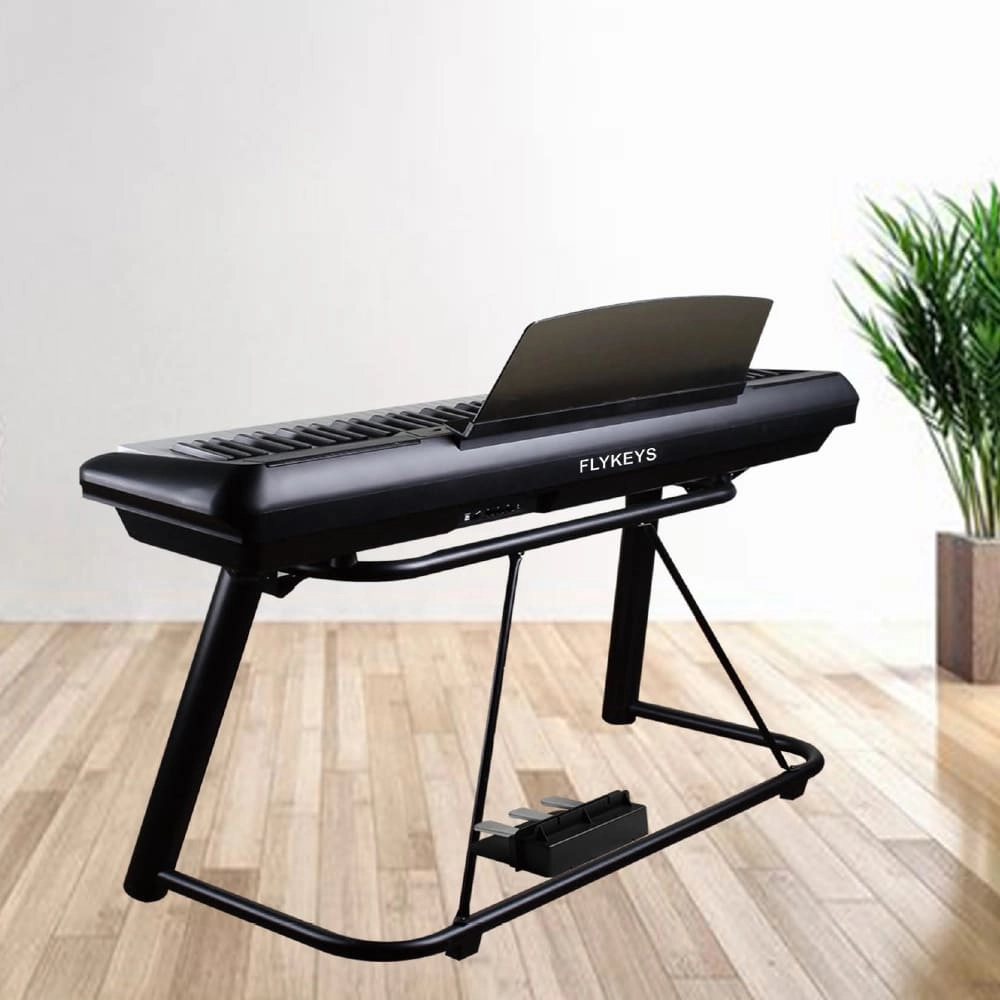
FLYKEYS Wooden Panel Piano Original Italian Imported Hammer Action Keyboard SK3 Digital Piano
FLYKEYS FGP110 Professional 88-Key Digital Grand Piano with Hammer Action Keyboard
FLYKEYS Portable Electric Keyboard FP9 Digital Piano
FLYKEYS 88-Keys Portable Piano With Wooden Stand FP6 Digital Piano
Get in touch with us
Have a question or inquiry about our digital pianos products? Leave us a message here and our team will get back to you promptly within 24 hours.
Whether you're interested in custom orders, technical specifications, or partnership opportunities, we're here to assist you.
Rest assured that your privacy is important to us, and all information provided will be handled with the utmost confidentiality.
Copyright© 2026 FLYKEYS All Rights Reserved. 粤 ICP备2020102774号. Designed by Gooeyun. Sitemap | Privacy | Terms
FLYKEYS
FLYKEYS
flykeys-music
Flykeys Music