

how to add sounds to digital piano | FLYKEYS Guide
Discover how to add sounds to your digital piano with FLYKEYS. This guide provides professionals with clear, actionable steps to expand their instrument's sound library and improve performance versatility.
# How to Add Sounds to Your Digital Piano
Digital pianos are versatile instruments, but their built-in sound libraries may not always meet your needs. Adding custom sounds can enhance your playing experience and expand your creative possibilities. This guide will walk you through the process of adding sounds to your digital piano, ensuring you can tailor your instrument to your professional requirements.
Understanding Your Digital Piano’s Capabilities
Before adding sounds, it’s essential to understand your digital piano’s capabilities. Most modern digital pianos support MIDI (Musical Instrument Digital Interface) and audio file integration. Check your piano’s manual or manufacturer’s website to confirm compatibility with external sound libraries or software.
Step 1: Choose the Right Sound Library
The first step is selecting a high-quality sound library that aligns with your musical style. Many professional-grade libraries offer realistic piano tones, orchestral instruments, and unique sound effects. Ensure the library is compatible with your digital piano’s file format, such as WAV, MP3, or proprietary formats like .SF2 or .NKI.
Step 2: Connect Your Digital Piano to a Computer
To add sounds, connect your digital piano to a computer using a USB or MIDI cable. Install any necessary drivers or software provided by the piano’s manufacturer. This connection allows you to transfer sound files directly to your instrument or use a Digital Audio Workstation (DAW) to manage and play the sounds.
Step 3: Transfer or Load the Sounds
Once connected, transfer the sound files to your digital piano’s internal memory or an external storage device, depending on your model. Some pianos allow direct loading via software, while others require manual file placement. Follow your piano’s instructions to ensure the sounds are correctly integrated.
Step 4: Organize and Test Your New Sounds
After loading the sounds, organize them into categories or folders for easy access. Test each sound to ensure it plays correctly and adjust settings like volume, reverb, or EQ as needed. This step ensures your new sounds are performance-ready.
Tips for Optimizing Your Sound Library
- Backup Your Files: Always keep a backup of your original sound library and custom sounds to avoid data loss.
- Update Firmware: Regularly check for firmware updates from your piano’s manufacturer to ensure compatibility with new sound formats.
- Experiment with Layering: Combine multiple sounds to create unique textures and enhance your compositions.
Conclusion
Adding sounds to your digital piano is a straightforward process that can significantly enhance your instrument’s versatility. By following these steps, you can customize your piano to suit your professional needs and unlock new creative possibilities. With FLYKEYS, you’re equipped to take your digital piano experience to the next level.
This guide provides a professional yet approachable resource for adding sounds to digital pianos, ensuring your audience gains valuable insights while maintaining a friendly tone.

The Ultimate 2026 Buyer's Guide to Digital Grand Pianos: Recreating Acoustic Grandeur Digitally

Unlocking Musical Excellence: Your Comprehensive Guide to the Perfect Digital Grand Piano
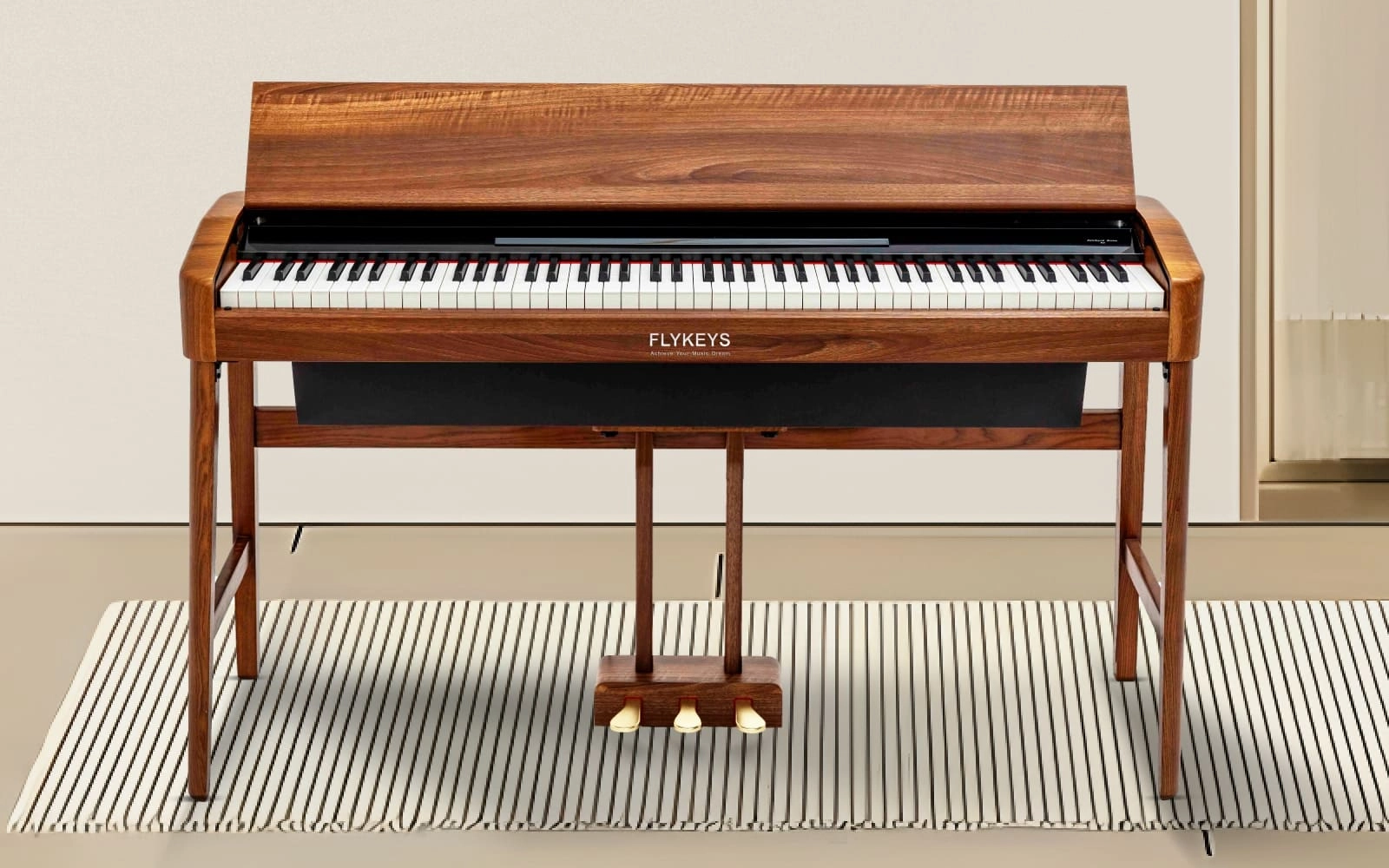
The Complete Guide to Choosing a Digital Piano Keyboard for Beginners

Pearl River Amason-FLYKEYS Grand Digital Piano FGP610 Shines at China-Singapore-Thailand International Music Exchange

Top Digital Pianos in 2026: A Complete Guide to the Best Digital Piano & Best Digital Grand Piano Options

How to Choose the Best Digital Piano: A Buyer’s Guide to Great Digital Pianos
Products
Do you offer software updates for your electronic pianos?
Yes, we regularly release software updates to enhance performance and add new features to our electronic pianos.
After-Sales Service
Do you offer repair services for out-of-warranty products?
Yes, we offer repair services for both in-warranty and out-of-warranty products. Please contact our support team for assistance.
Customization
What is the lead time for custom orders?
Lead times for custom orders vary depending on the complexity of the customization and current production schedules. Please contact our sales team for more information.
Can I customize the finish of my electronic piano?
Yes, we offer customization options for finishes, allowing you to choose from a variety of colors and textures.
Logistics
Do you ship internationally?
Yes, we offer international shipping to most countries worldwide.
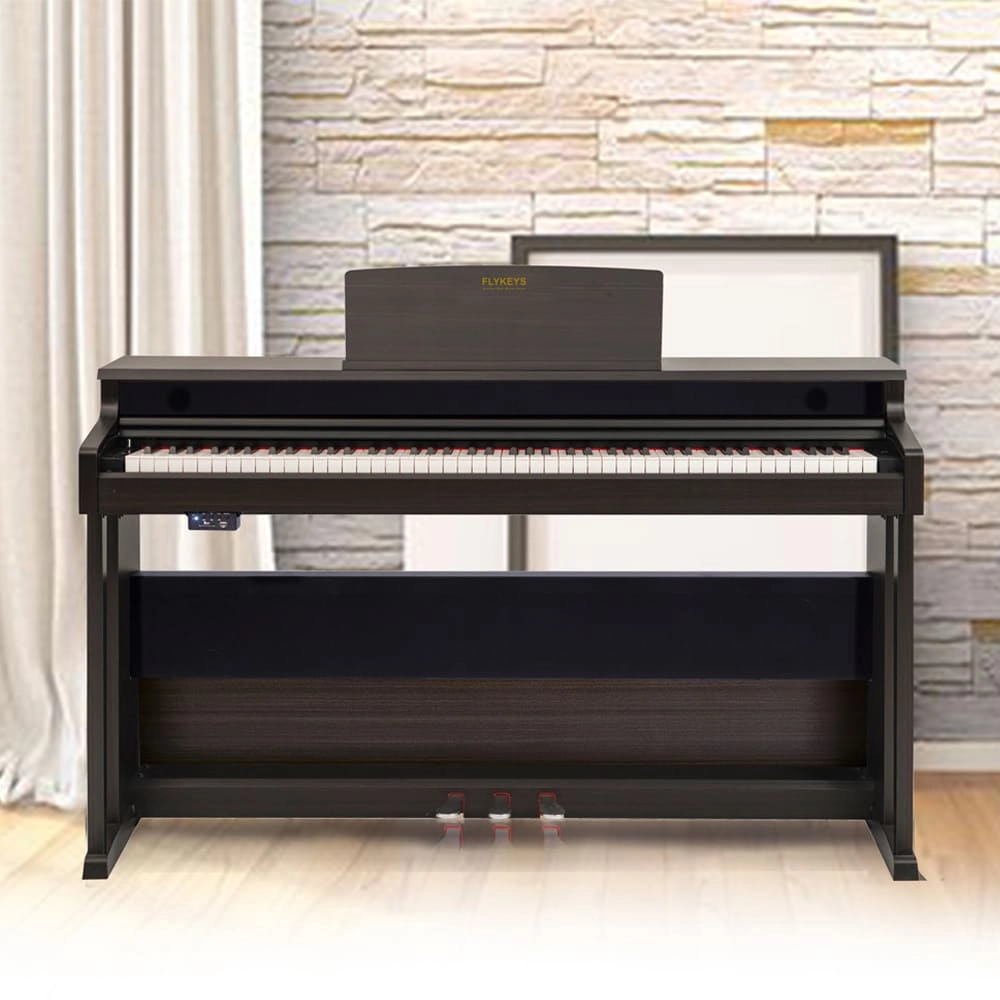
Flykeys Upright Piano Wooden Panel 88 KEYS Piano FK130 Digital Piano
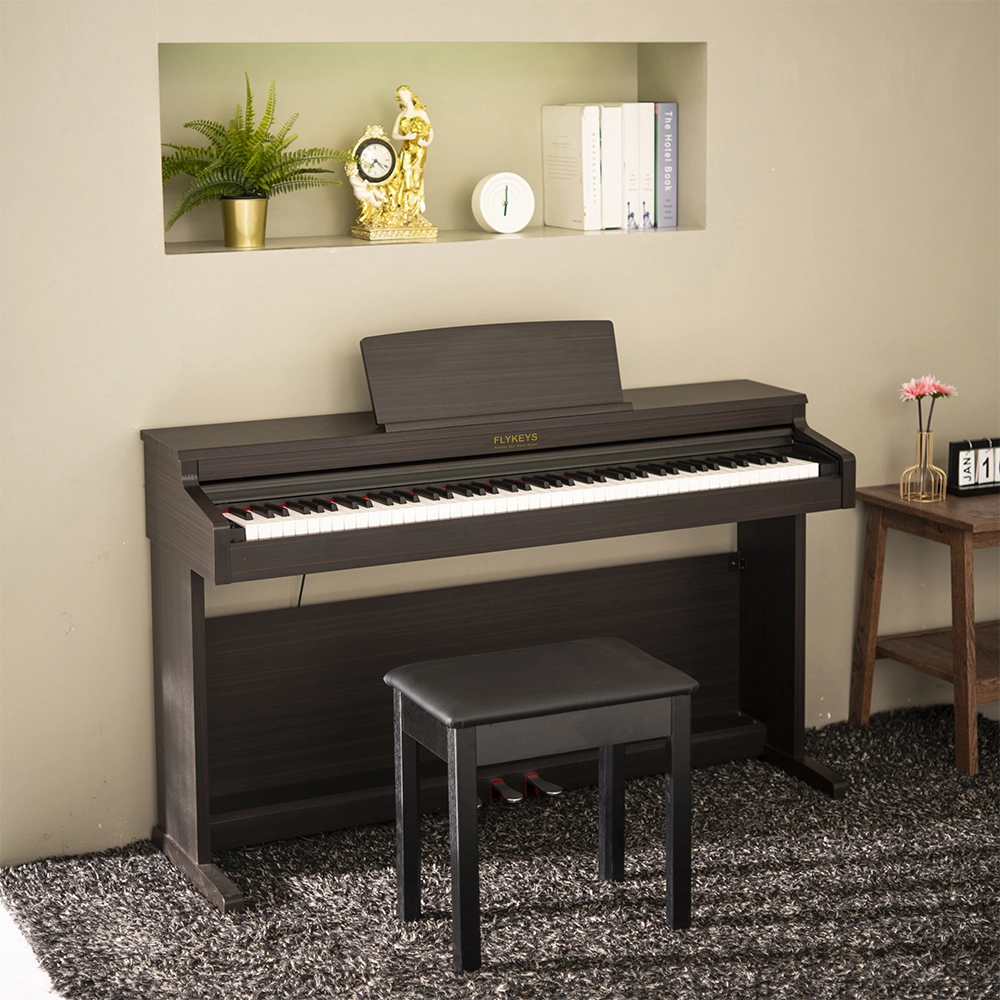
Flykeys 88 Keys Hammer Action keyboard Upright Piano LK03S Digital Piano
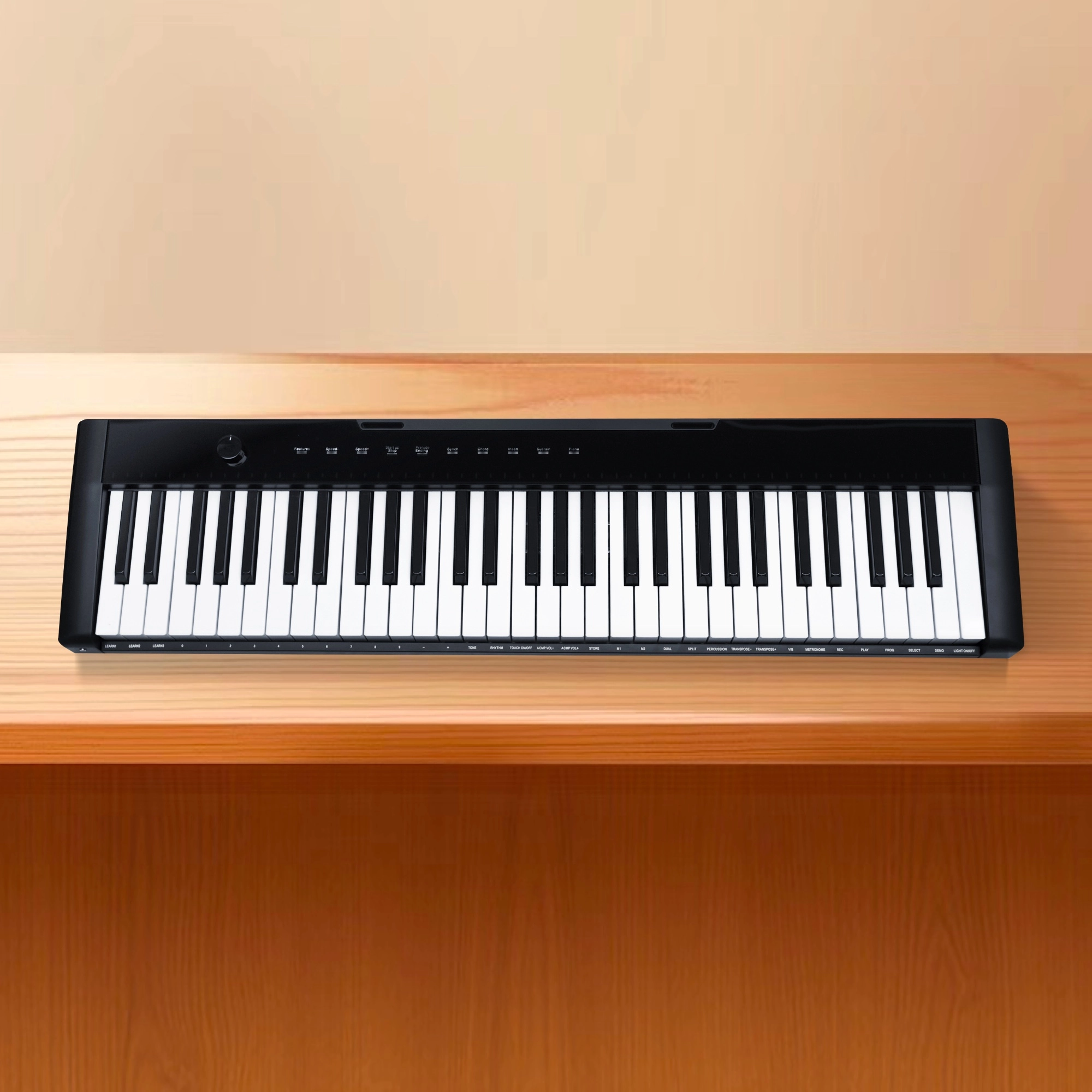
Flykeys 61 keys portable electronic keyboard piano with X stand (M2)
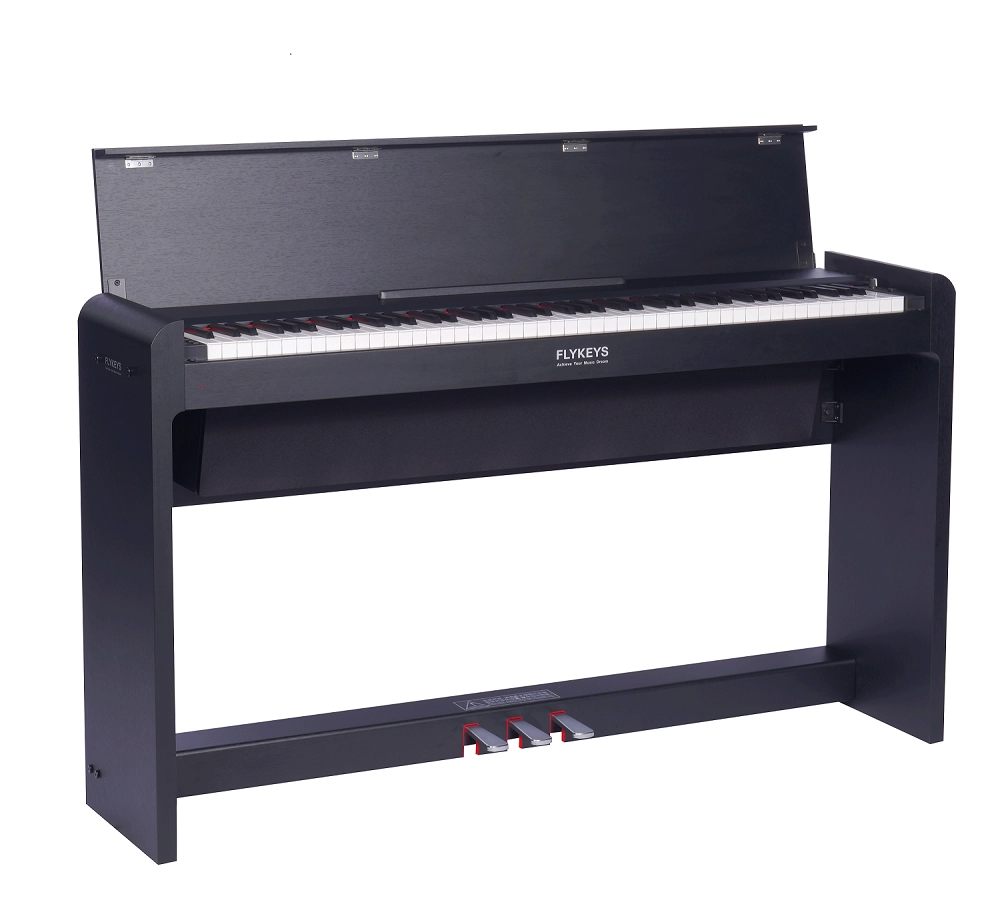
FLYKEYS FDP 5 Digital Piano
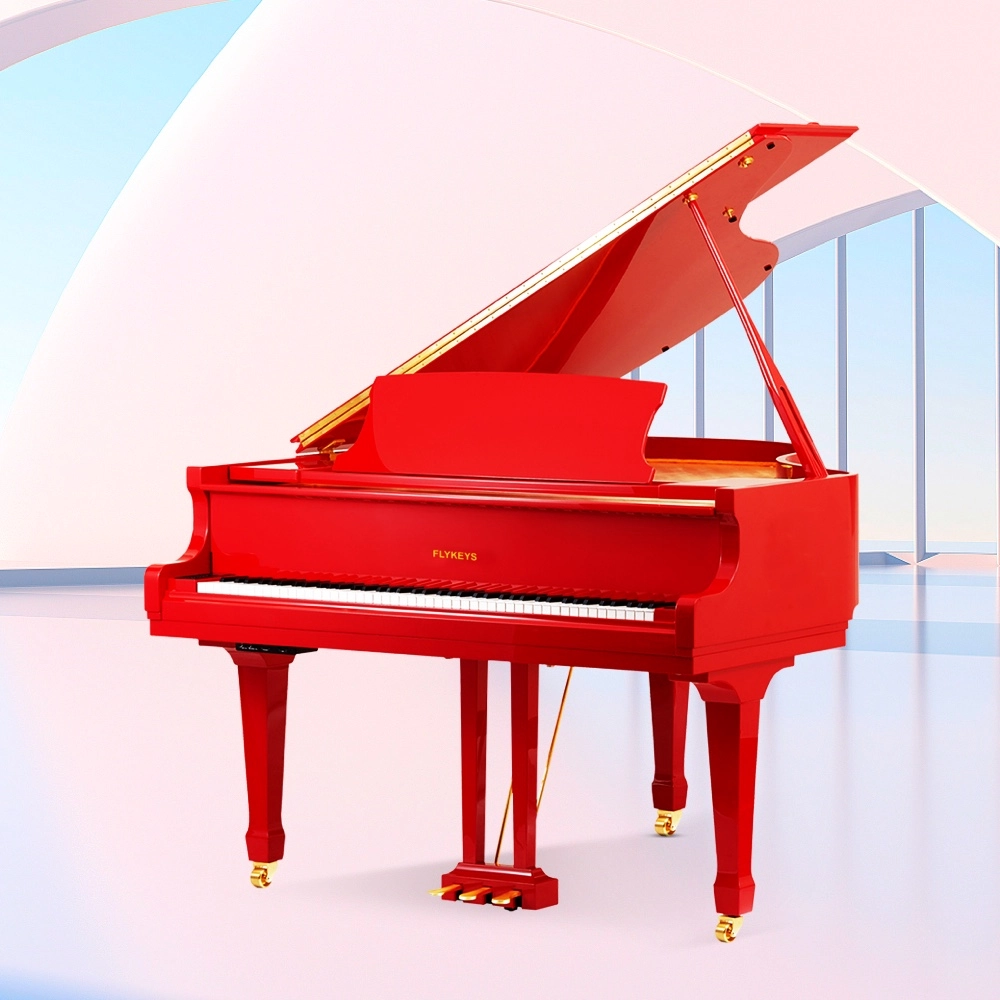
Flykeys Professional Digital Grand Piano FGP610 Digital Piano
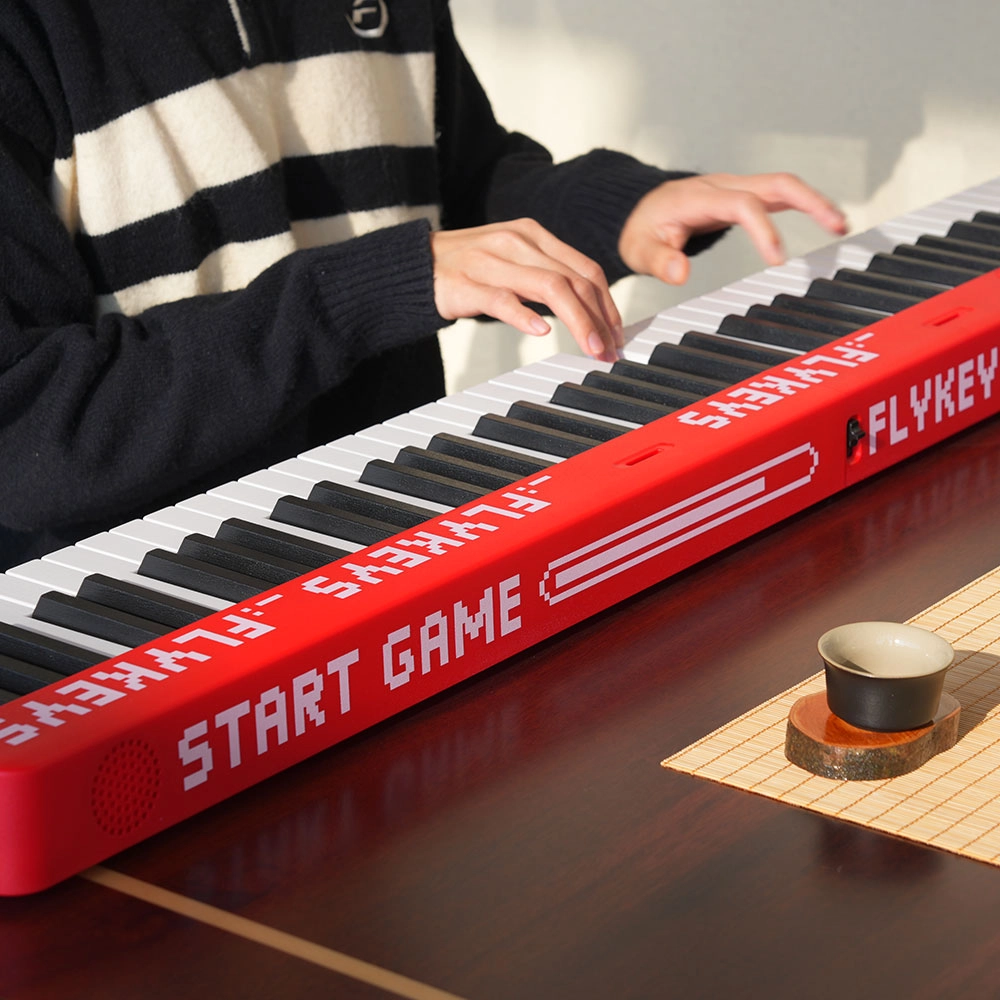
Flykeys M12 Folding Keyboard
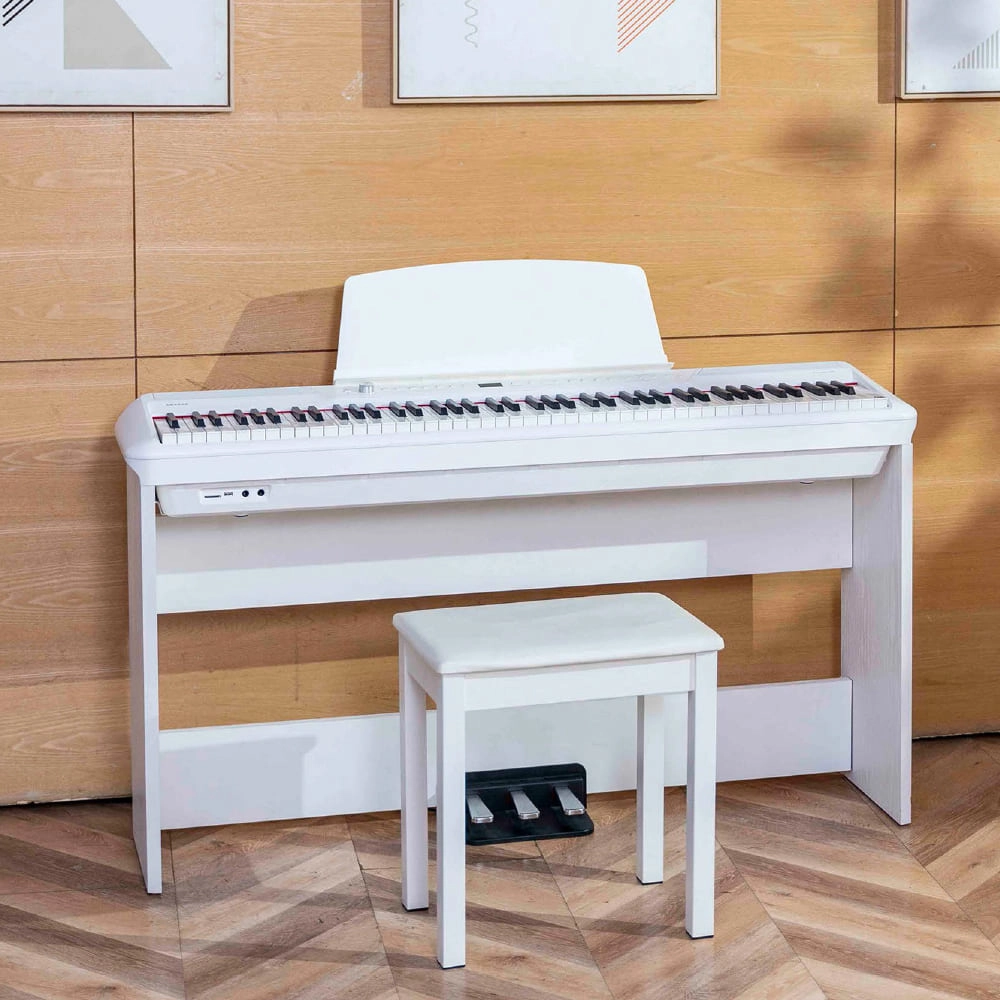
Flykeys Portable Electric Keyboard FP9 Digital Piano
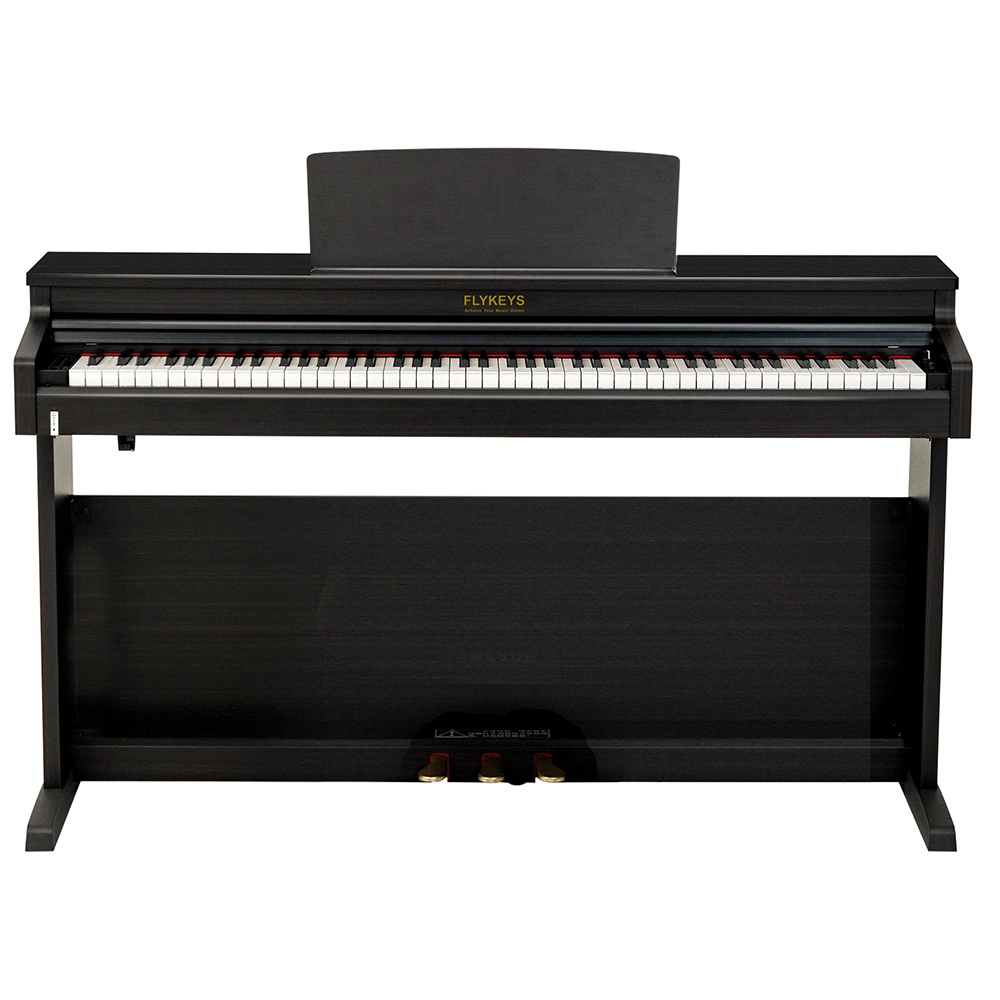
Flykeys Upright Digital Piano FDP 3
Get in touch with us
Have a question or inquiry about our digital pianos products? Leave us a message here and our team will get back to you promptly within 24 hours.
Whether you're interested in custom orders, technical specifications, or partnership opportunities, we're here to assist you.
Rest assured that your privacy is important to us, and all information provided will be handled with the utmost confidentiality.
Address: No. 38 Xiangshan Avenue, Zengcheng Economic And Technological Development Zone, Guangzhou, China.
FOLLOW US:


© 2024 FLYKEYS All Rights Reserved. 粤ICP备2020102774号. Designed by gooeyun Sitemap | Privacy | Terms